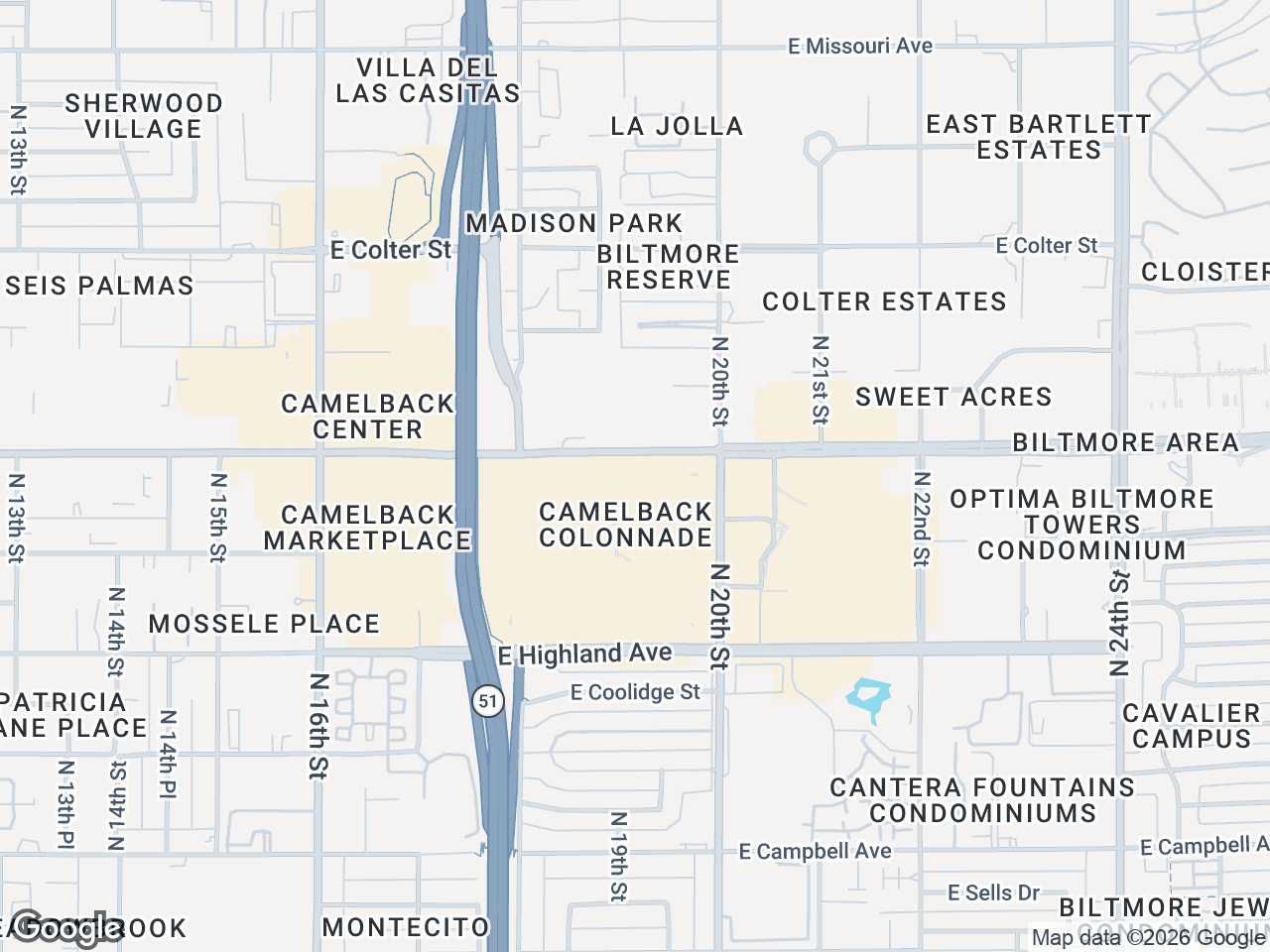



A retail landscape map shows prospective tenants and investors exactly what they need to know about location fit: who's already there, what categories are represented, and how your property connects to the surrounding retail ecosystem. This tutorial walks you through creating a professional tenant map that highlights co-tenancy and trade area strength in under 15 minutes.
Why a Retail Landscape Map Belongs in Every OM
When a broker sends out an offering memorandum for a retail property, the location pages carry disproportionate weight. Buyers and tenants make quick judgments based on visual evidence. A dense, well-organized map of surrounding retail tenants signals foot traffic potential, synergistic co-tenancy, and neighborhood vitality.
The alternative—a text list of nearby businesses or a screenshot from Google Maps—doesn't communicate the same professionalism. Names alone don't register as quickly as recognizable logos arranged spatially around your subject property.
A strong retail landscape map accomplishes three things:
- Demonstrates co-tenancy with national credit tenants
- Shows category diversity (dining, services, grocery, fitness)
- Visually anchors your property as part of an established retail corridor
Step 1: Set Your Subject Property and Choose a Base Style
Start by dropping a pin at your listing address. This becomes the visual anchor for your entire map—the point every viewer's eye returns to.
- Enter the property address in CRE Retail Maps to center the map
- Select your subject property marker style and add a custom label (property name, square footage, or "Subject")
- Choose a map style that matches your brokerage brand or OM design
- Zoom to show the relevant context—typically a half-mile radius for neighborhood retail, more for power centers
The base style matters more than you'd think. A dark map with bright logos pops in PDF OMs. A light or minimal style works better for printed flyers. Satellite view adds geographic context when terrain or parking configuration matters.
Step 2: Use Auto-Find to Map Surrounding Retail Tenants by Category
This is where the tool does the heavy lifting. Instead of manually searching for each nearby business, auto-find scans the area and populates your map with relevant tenants by category.
- Select a business category (restaurants, banks, grocery, fitness, medical, etc.)
- Adjust the search radius to match your trade area
- Review the auto-populated results on the map
- Remove any tenants that don't fit your narrative or are permanently closed
- Repeat for additional categories
The goal isn't to list every business within three miles. It's to curate a map surrounding retail tenants that tells a specific story about your location. A property near a Target, Trader Joe's, and Chipotle tells a different story than one surrounded by independent nail salons and check-cashing stores—and both stories have audiences.
Step 3: Place Brand Logos with Leader Lines for Clarity
Once you've identified the nearby businesses commercial property prospects care about, place official brand logos at their map locations. The logo library includes 1,000+ searchable official brand marks—Starbucks, Target, CVS, Chase, Walgreens, and most national tenants you'd expect to find.
- Search for each tenant by name in the logo library
- Drag the logo to its approximate map location
- Add leader lines connecting logos to precise points when clustering makes exact placement difficult
- Adjust line weight and color for visibility against your base map
Leader lines solve a real problem: in dense retail nodes, logos overlap and become unreadable. By offsetting logos and connecting them with clean lines to map points, you maintain both brand recognition and geographic accuracy.
For tenants not in the logo library, you can upload custom logos or use generic category icons. The key is consistency—every element should look intentional.
Step 4: Group Tenants into Labeled Clusters
A retail ecosystem map CRE professionals find useful goes beyond pin-dropping. It organizes information. Grouping containers let you cluster related tenants under a single label—helping viewers process the information faster.
- Draw a container around a group of related tenants (e.g., "Dining District" or "Medical Office Cluster")
- Label the container with a descriptive header
- Adjust container styling to complement your map aesthetic
- Use grouping to separate anchor tenants from inline shops, or retail from service tenants
This technique is especially valuable for mixed-use properties or large power centers where distinct zones exist. A single map might show a "Grocery Anchored" zone, a "Restaurant Row," and a "Financial Services" cluster—all visually separated but geographically accurate.
Grouping also helps when you're mapping a large trade area. Instead of 40 scattered logos, you present 5-6 labeled clusters that prospects can scan in seconds.
Step 5: Apply Custom Colors and Final Styling
The difference between a map that looks like a marketing asset and one that looks like a screenshot is styling coherence.
- Set your logo background colors to match your brokerage brand
- Adjust leader line colors for visibility (white lines on dark maps, dark lines on light maps)
- Ensure subject property markers stand out from tenant logos
- Check label readability at your intended export resolution
Consistent styling signals professionalism. When the map colors match the rest of your OM, the entire package feels considered and cohesive.
Step 6: Export Your Retail Landscape Map
With your map complete, export it in the format your marketing requires.
- For digital OMs: export as high-res PNG (up to 4K resolution)
- For print materials: use the PNG at full resolution
- For branded PDFs: apply a PDF template with your logo and property details
The export should be sharp enough that logos remain recognizable at print size—no pixelation, no fuzzy text.
When to Use a Retail Landscape Map in Your Marketing
Not every listing needs a full ecosystem map. But for properties where location is a primary selling point, this visual becomes one of the most-viewed pages in your OM.
Use a retail landscape map when:
- Marketing to tenants who care about co-tenancy and foot traffic
- Pitching to investors who want evidence of retail corridor strength
- The property sits near recognizable credit tenants
- You're competing against other listings and need to differentiate
- The trade area has category diversity worth highlighting
For single-tenant NNN deals, a simpler map with a few key neighbors might suffice. For multi-tenant retail or mixed-use, the full ecosystem approach demonstrates the depth of the location's retail infrastructure.
---
Creating a retail landscape map with CRE Retail Maps takes most brokers under 15 minutes once they're familiar with the workflow. The $39/month flat rate covers unlimited maps—use it across your entire retail portfolio without tracking per-project costs. Sign up for the free trial and map your next listing before the OM goes out.