

A retail map covered in brand logos but sitting on a default Google Maps background looks unfinished. The difference between an amateur map and a professional one often comes down to styling — the map base, the color palette, the highway treatment, and the label choices. These details signal that you've put thought into the presentation, which reflects directly on how prospects perceive the property and your brokerage.
This tutorial walks through every customization option available in CRE Retail Maps and explains how to use them to create branded, consistent maps across your entire portfolio.
Choosing the Right Map Style
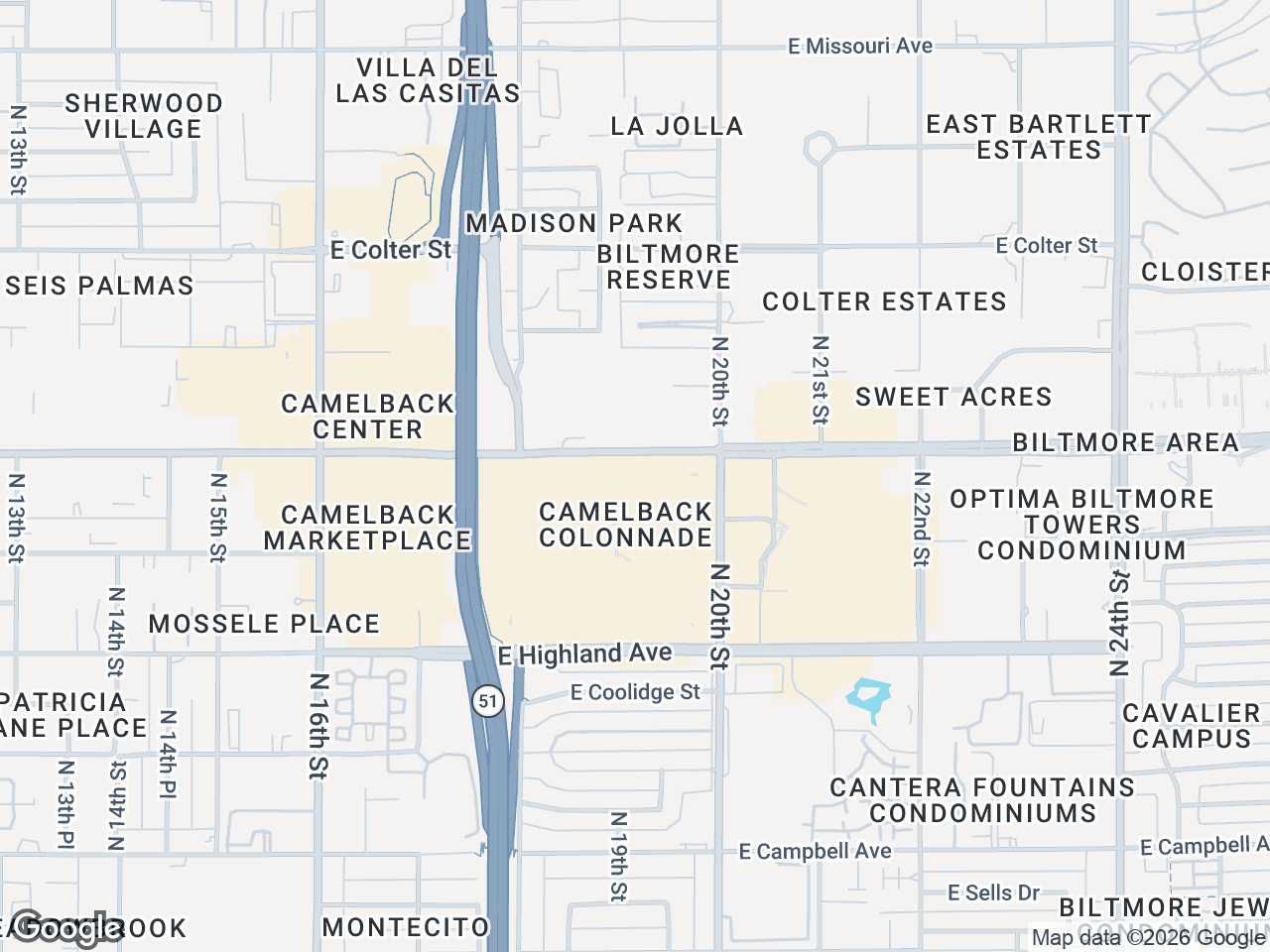
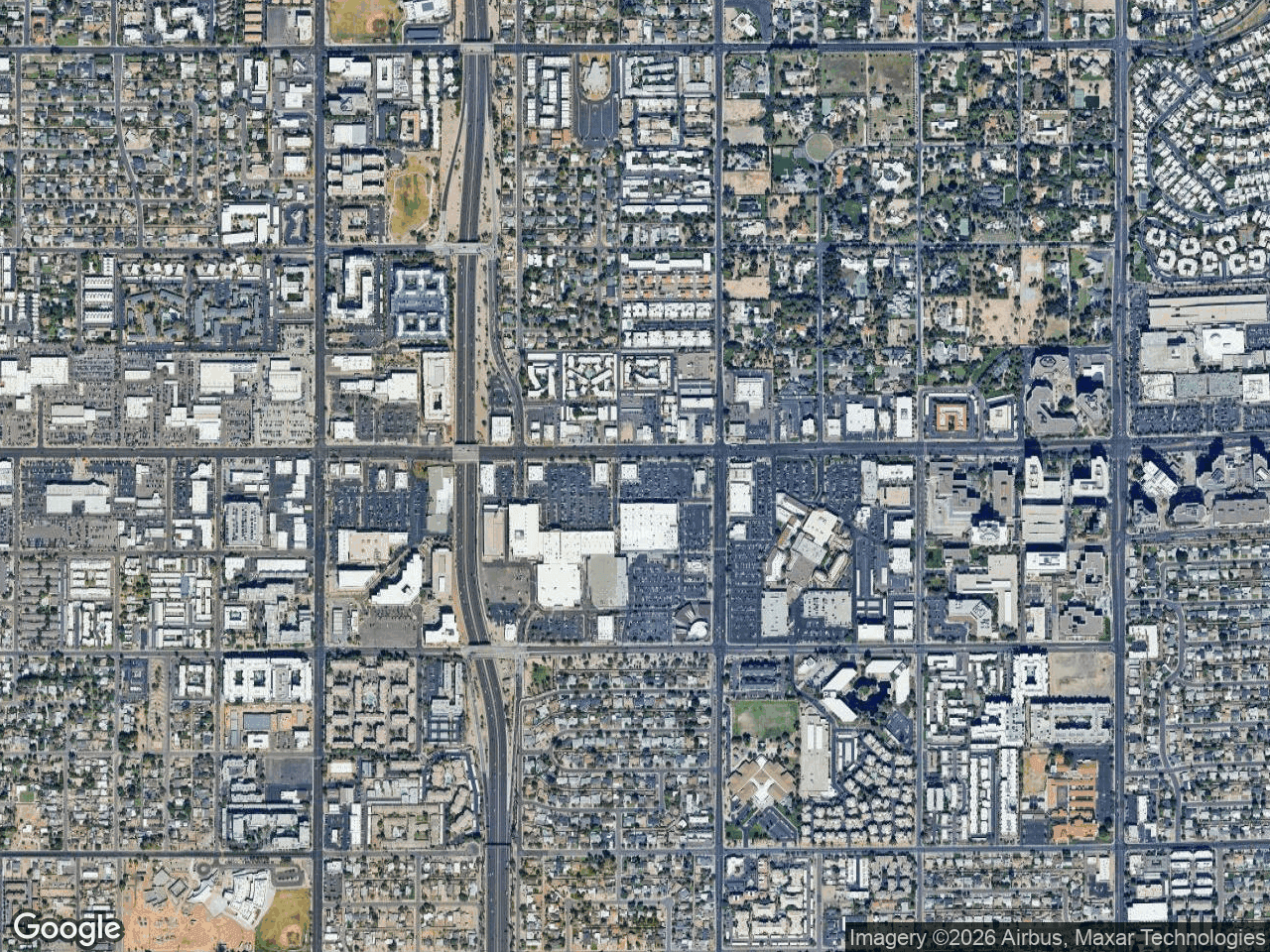
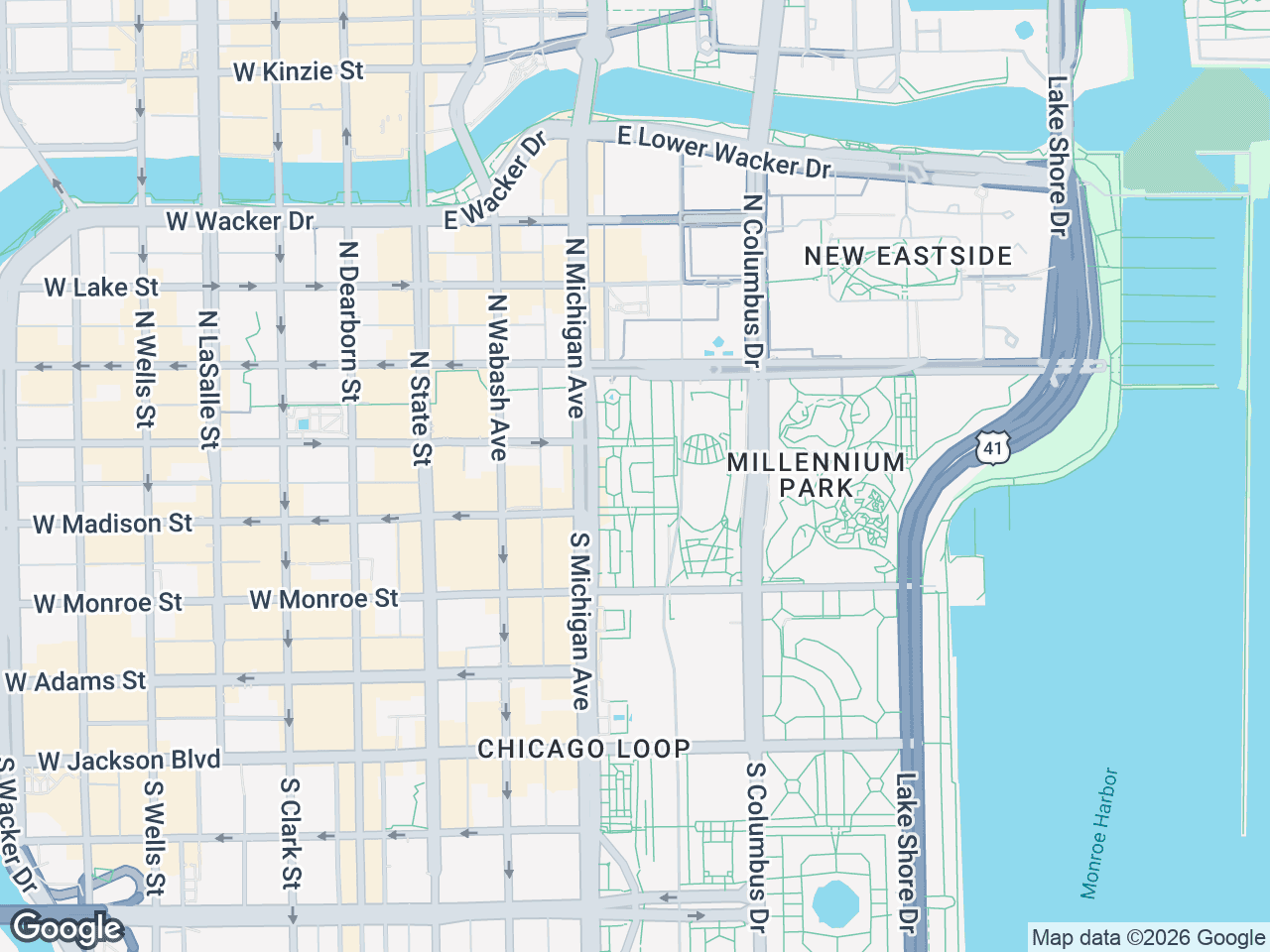
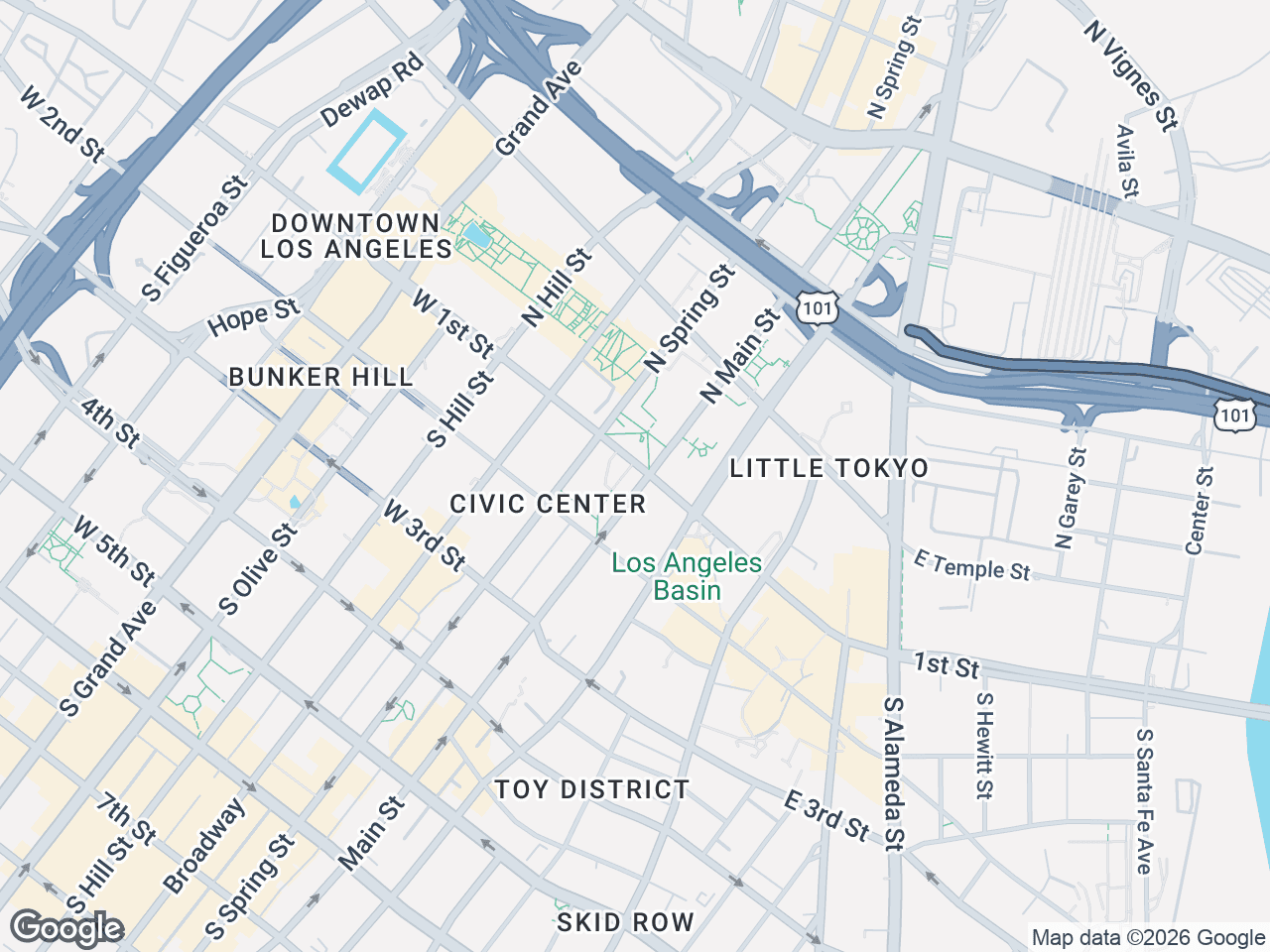
CRE Retail Maps offers eight distinct map styles, each suited to different presentation contexts. Choosing the right base map is the single biggest visual decision you'll make.
Default — The standard Google Maps look. Familiar and readable, but not particularly distinctive. Use it when you want the map to feel neutral and let the logos do the talking.
Light — A clean, muted base with soft grays and whites. This is the most popular choice for professional presentations because it provides geographic context without competing with the logos and leader lines layered on top. Ideal for OMs and property flyers.
Dark — A deep charcoal background with light-colored roads and labels. Creates a striking, modern look that works well for urban properties, entertainment districts, and upscale retail. Logos pop against the dark background.
Retro — Warm, muted tones inspired by vintage cartography. Gives maps a distinctive character that stands out from the typical CRE map. Works well for historic districts or properties with architectural character.
Silver — Similar to Light but with cooler undertones. A good middle ground when Light feels too warm and Dark feels too dramatic. Clean and corporate.
Night — Deep blues and blacks with neon-tinged road labels. Similar energy to Dark but with more color. Best for properties in nightlife or entertainment-focused areas.
Satellite — Real aerial imagery. Essential when you need to show the physical property, parking, landscaping, or building footprints. Use this when the aerial perspective tells a story that a street map cannot — for example, showing a property's visibility from a highway or the density of surrounding development.
Terrain — Topographic styling that shows elevation changes and natural features. Useful for properties where terrain matters — hillside retail, waterfront locations, or properties near parks and natural amenities.
The general rule: If the map is going into a formal document (OM, brochure, flyer), start with Light or Silver. If the map is for a digital presentation or social media, Dark and Night create more visual impact on screens.
Setting Your Color Palette
Color consistency is what separates a one-off map from a branded asset. CRE Retail Maps provides two approaches to color selection.
12 preset color swatches cover the most common brokerage brand colors — professional blues, corporate grays, bold reds, and clean greens. These presets are calibrated to look good on all eight map styles, so you can pick one and trust that it will work across your maps.
Custom color picker lets you enter your exact brand hex code. If your brokerage uses Pantone 287 (hex #003DA5), you can enter that value and every colored element on your map — containers, highlights, labels — will match precisely. This is essential for brokerages with strict brand guidelines.
Colors apply to several map elements:
- Drag-to-group container borders and headers — The grouped tenant boxes that organize logos into labeled clusters.
- Leader line colors — The connector lines between logos and their map locations.
- Highlight overlays — Any colored overlays used to emphasize specific areas or parcels.
By using the same color across all your maps, every listing in your portfolio carries a consistent visual identity. When a prospect sees your map, they recognize it as yours before reading a single word.
Highway Highlighting
Highways are the arteries of retail real estate. Visibility from a major road, proximity to an interchange, or access via an arterial — these are selling points that deserve visual emphasis.
CRE Retail Maps lets you customize highway highlighting with three controls:
- Color: Match the highway highlight to your brand color or use a contrasting color to draw attention to key routes.
- Weight: Adjust the line thickness. Thicker lines for major highways, thinner for secondary roads. This creates a visual hierarchy that guides the viewer's eye.
- Opacity: Control transparency so the highway highlight enhances the map without obscuring underlying detail. A semi-transparent highlight (60-80% opacity) usually strikes the right balance.
A practical approach: highlight the one or two roads most relevant to your property's access and visibility story. Don't highlight every road — it dilutes the emphasis and clutters the map.
Label Controls
Not every label on a map is relevant to every presentation. CRE Retail Maps gives you granular control over which labels appear:
- Street labels — Usually on. Turn off only if the map is zoomed out enough that street names become illegible clutter.
- Highway labels — Keep on for properties where highway access is a selling point. Turn off if highways aren't part of the location story.
- Area labels — Neighborhood and district names. Useful for establishing context ("Downtown Phoenix," "River North") but can be turned off for tighter, more focused maps.
- Business labels — The default Google Maps business names. Turn these off. Your placed logos and leader lines replace this function with much higher visual quality.
- Transit labels — Bus stops, rail stations, transit lines. Essential for urban properties where public transit access matters. Irrelevant for suburban highway retail.
- Water labels — Lake, river, and ocean names. Keep them on for waterfront or coastal properties. Turn off elsewhere to reduce visual noise.
The goal is to show only what matters for each specific property. A suburban shopping center doesn't need transit labels. A downtown mixed-use building doesn't need terrain detail. Curate the labels to support your narrative.
Creating Consistent Branded Maps
Once you've dialed in your style preferences — map style, color palette, highway treatment, label settings — the key is consistency. Every map you produce should look like it belongs to the same family.
Here's a simple branding framework:
- Pick one map style as your default. Light and Silver work for most brokerages.
- Set your brand color using the custom color picker. Use this for containers, leader lines, and highlights across every map.
- Standardize your label settings. Decide once which labels to show, and apply the same settings to every map unless a specific property demands something different.
- Export at consistent resolution. Use 4K PNG for digital and the branded PDF template for print. Same export settings, every time.
This consistency pays dividends over time. Your maps become recognizable. Clients associate the quality with your brand. And new brokers on your team can produce on-brand maps without guessing at style choices.
Export for Every Context
The best-styled map is wasted if it's exported poorly. CRE Retail Maps offers two export paths:
High-res PNG (up to 4K) — Use for digital presentations, email campaigns, social media posts, and embedding in documents you're assembling in other tools. The 4K resolution ensures the map stays crisp even when displayed on large monitors or projected in a conference room.
PDF with branded templates — Use for print materials, offering memorandums, and standalone property flyers. The PDF templates include space for your brokerage logo, contact information, and property details, so the exported file is ready to distribute without additional formatting.
Both formats preserve the styling choices you've made — colors, labels, highway highlights, and map style all export exactly as they appear on screen.
Start with Style
Map styling isn't decoration — it's communication. A thoughtfully styled map tells prospects that you pay attention to detail, that your brokerage is professional, and that the property deserves serious consideration. It takes less than two minutes to set your style preferences in CRE Retail Maps, and those two minutes elevate every map you create from that point forward.